Find your archived pages
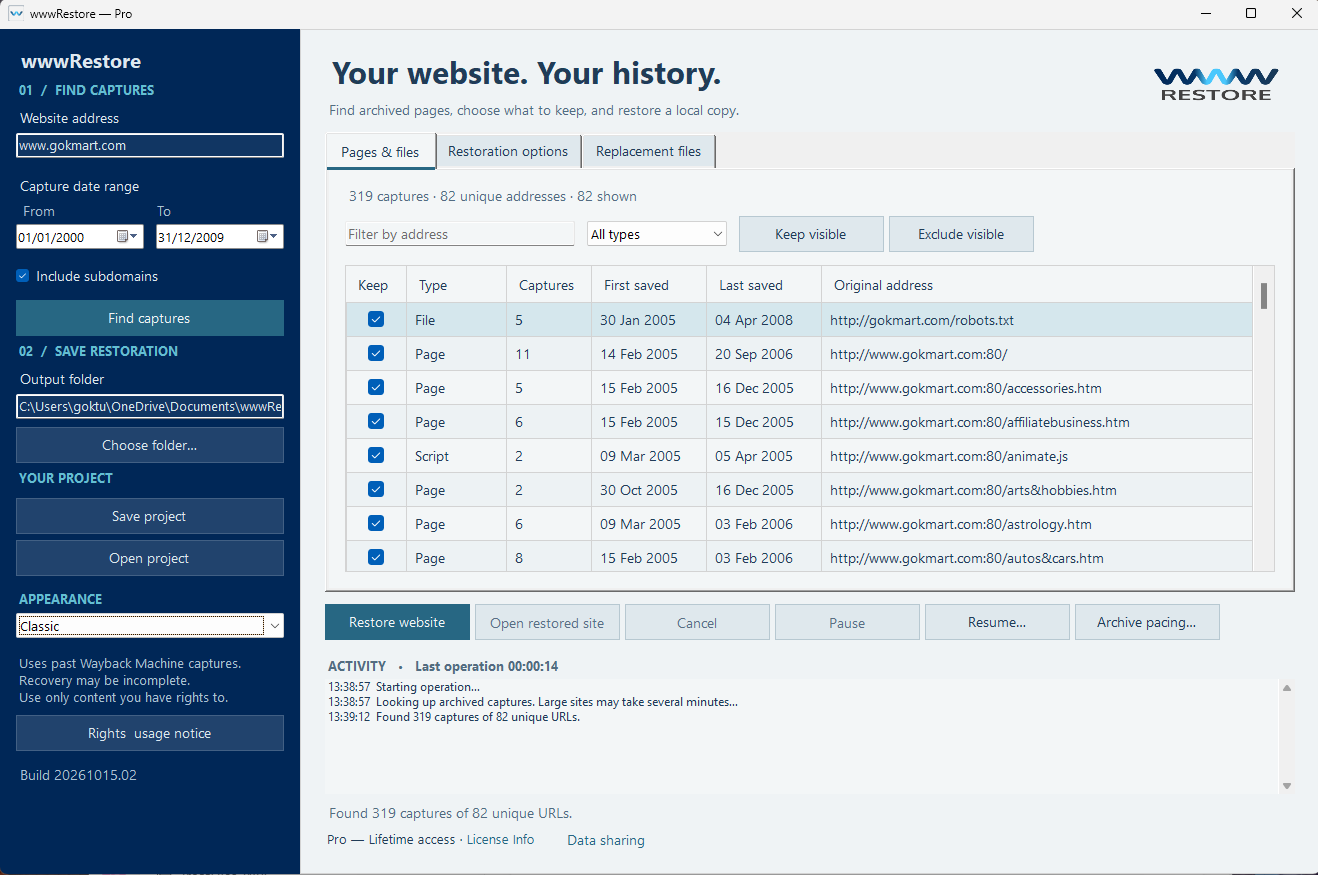
Search by domain and date range. Include subdomains, filter by address or file type, and select the captures you want to keep.

WEBSITE RESTORATION FOR WINDOWS
Rediscover the website you built. Recover available archived pages, images, and styles—and bring them together in a browsable copy on your PC.
Windows 10 & 11 · No AI subscription or API key needed
Illustration · Recovery depends on available captures
A WORKSPACE FOR YOUR WEB HISTORY
Find the pages. Review the files. Follow the restoration. Every step stays in your hands.
RECOVER WITH CONTROL
Search by domain and date range. Include subdomains, filter by address or file type, and select the captures you want to keep.
Create a separate browsing copy for each year, or combine your selected period. Recovered links are rewritten for local browsing.
Search the same asset URL in other periods, or supply your own replacement file. Recovery reports record what was found and what is missing.
Choose whether to remove scripts or animations and media, including GIFs. Exclude unwanted URLs with wildcard rules.
Save your project and selections. Pause an operation, then resume an incomplete restoration using its saved settings.
Follow downloads, searches, and file writing. Timed waits explain their purpose, and the final report shows recovery outcomes.
THREE SIMPLE STEPS
Start with a domain.
Finish with a folder you can explore.
Enter your website address and choose the dates you want to revisit.
Review the capture list, choose what to keep, and select an output folder.
Let wwwRestore recover available content. Open your local copy and review the recovery report.
OLD WEBSITES. NEW POSSIBILITIES.
Revisit the pages, projects, and ideas that marked an earlier chapter.
Recover available content and visual references from a website you once ran.
Explore annual browsing copies and see how your website changed over time.
GOOD TO KNOW
Archive recovery has limits.
Here’s what to expect.
Recovery depends on captures preserved by Internet Archive. Content that was never captured or is inaccessible cannot be recovered. Missing pages and assets are recorded in the recovery report.
wwwRestore creates static browsing copies. It does not restore databases, server-side features, sign-ins, or working form submissions. Keeping scripts does not recreate online services.
No. Each annual version combines available captures from that year. Assets borrowed from another period are identified in the report. Monthly and weekly versions are not available in the current release.
wwwRestore spaces archive searches and file downloads to reduce load on the archive. It also waits before retrying failed or busy requests and honors archive-requested cooldowns. The app displays the wait duration and reason.
On your PC, in the folder you select. The default folder is Documents\wwwRestored-webpages. New restorations create separate export folders, and original downloads are cached locally.
No AI subscription or API key is needed. Internet access is required to search for captures and download archived files.
Windows 10, version 2004 (build 19041), or newer, including Windows 11. Internet access is required for archive retrieval and Microsoft Store services, plus storage for downloads, restored files, and the local cache. The Microsoft Store listing shows current device compatibility, regional availability, and pricing.
Use only content you own or have permission or another lawful right to recover and use. Archive availability does not grant rights to copy or republish content.
YOUR NEXT CHAPTER STARTS HERE
Bring available pieces of its history back to your PC.
Get it from Microsoft StoreFor Windows · Internet connection required for recovery